Installation
MATLAB Requirements
Quant4D is tested and stable on MATLAB R2021a or later. If performing a fresh installation of MATLAB, please ensure the following MATLAB Toolboxes are selected during the installation process:
Image Processing
Parallel Computing
Statistics and Machine Learning
If MATLAB is already installed, check whether or not the required Toolboxes are
installed by typing in ver to the MATLAB Command Window.
If some or all of the required Toolboxes are missing, they can be installed by first running MATLAB with administrator rights. Then, from the Home tab, under the Environment section, click the Add-Ons icon. From the Add-On Explorer, you can search for and install the required toolboxes listed above. More info can be found on the MathWorks website.
Installing Quant4D App
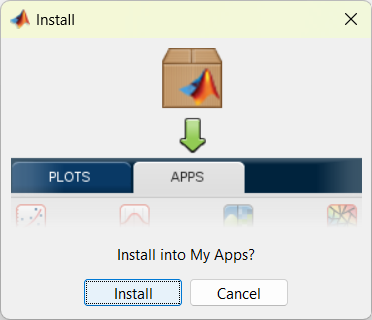
The simplest way to install Quant4D is via the application installer file (Quant4D.mlappinstall). Download and open the file, which will open MATLAB and ask to install Quant4D into My Apps (see below). Click Install and then open the app from the Apps tab on the MATLAB Toolstrip. The app may be buried on the list - if so, click the drop-down arrow on the far right of the toolstrip.
Running Quant4D code directly
Quant4D can also be run directly from the source code, which gives access to
debugging and live user interaction with the underlying experimental data for
additional functionality. To do this, first download the
source code.
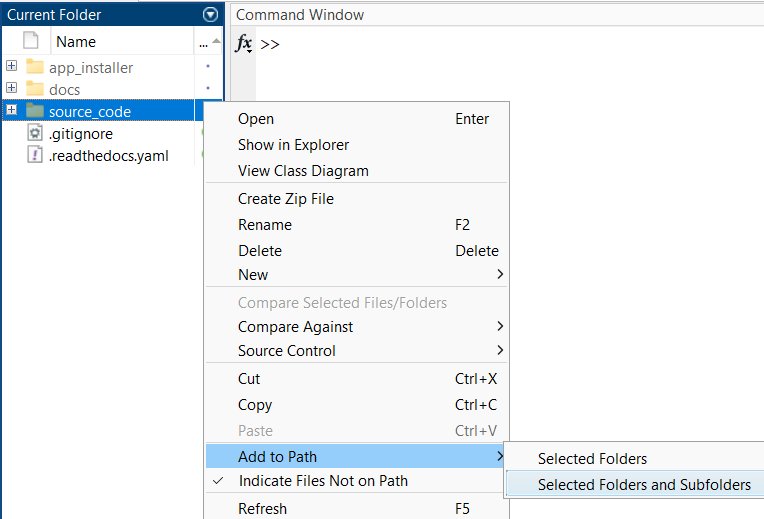
Then open MATLAB, navigate to the downloaded source code directory, and add the
directory and subdirectories to the MATLAB path by right-clicking on the parent
directory and clicking Add to Path > Selected Folders and Subfolders.
Alternatively, you can type addpath(genpath('.')). Once the source code
directory is on the MATLAB path, open Quant4D.mlapp either by double-clicking
it from the MATLAB file explorer tab or typing open('Quant4D.mlapp'), which
will open the MATLAB App Designer. In App Designer, simply press the Run
button in the Designer Tab under the Run section. This will start the
Quant4D app, whilst still allowing the user to debug, insert breakpoints, and
modify code as desired.